
Settings
The Settings workspace controls application-level preferences and local connection configuration. These settings affect how AQS looks, how it starts new runs, which local services it can reach, and how account-related links behave.
Open Settings from the left sidebar, then choose a settings section from the settings navigation.
Appearance
Section titled “Appearance”Use Appearance to control workspace presentation.
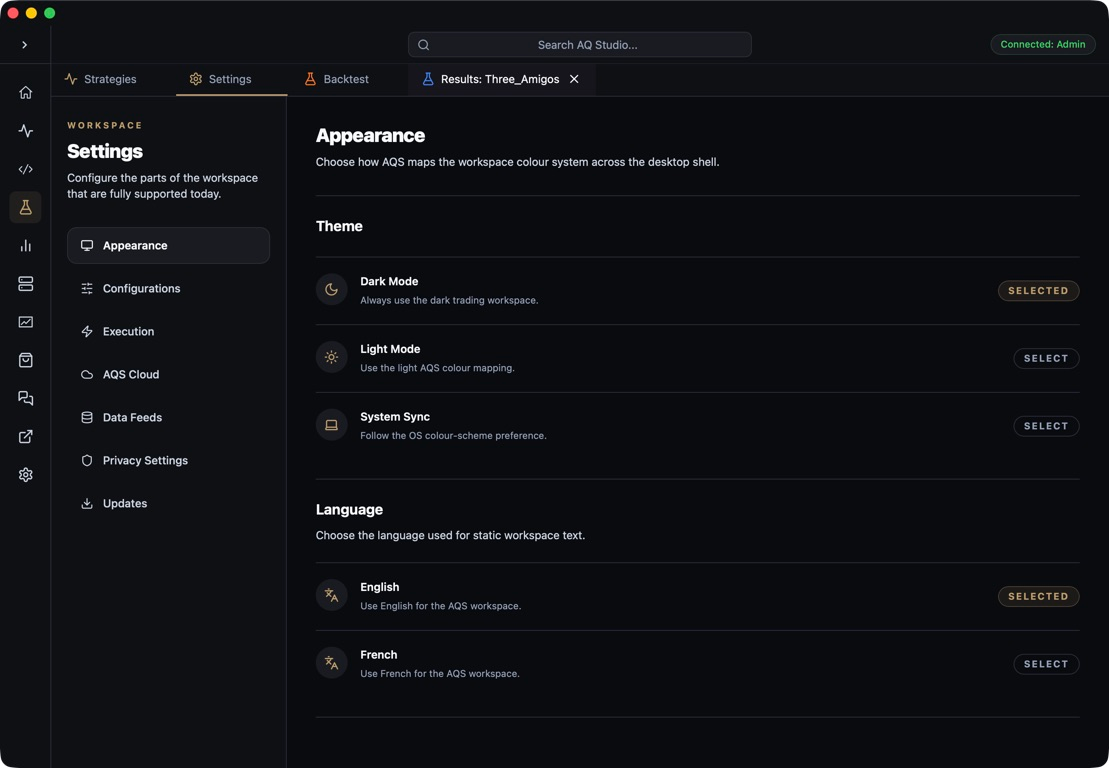
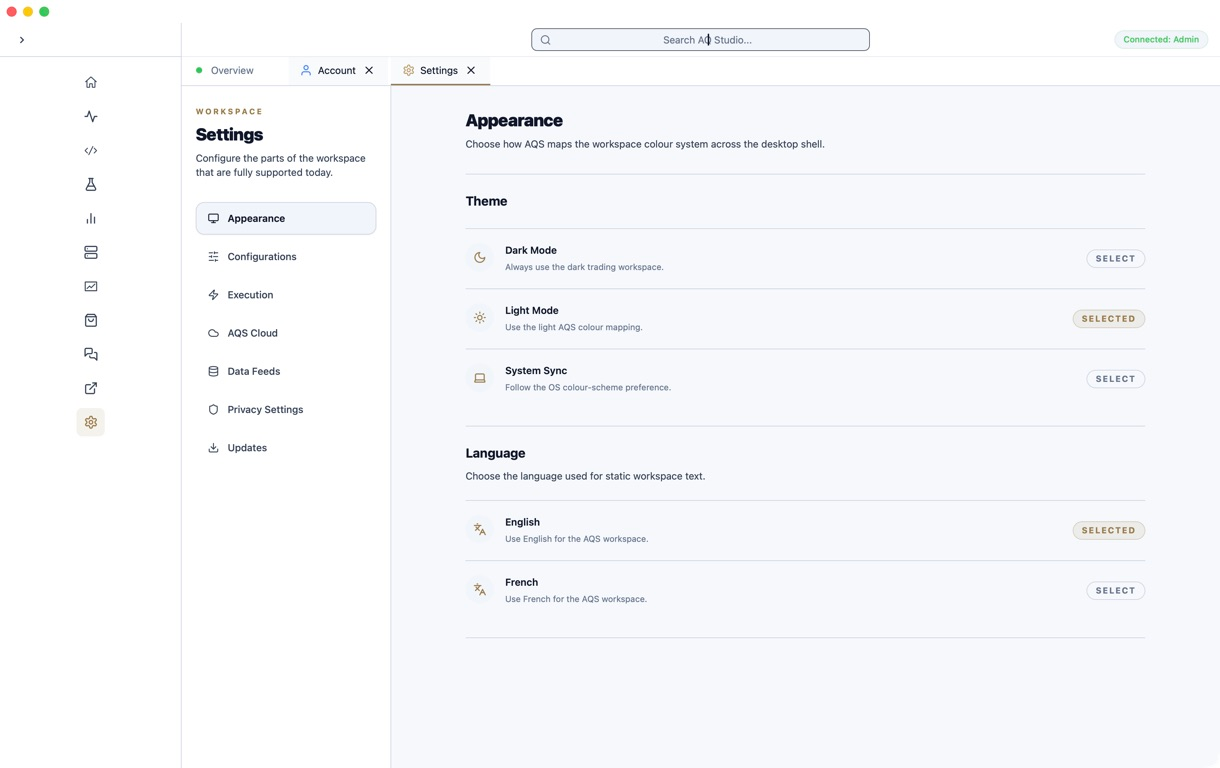
- Theme switches between dark mode, light mode, or system sync.
- Language changes static workspace text between English and French.
Change the application language
Section titled “Change the application language”- Open Settings from the left sidebar.
- Select Appearance.
- Find Language.
- Choose English or French.
- AQS updates supported workspace text immediately.
On first launch, AQS checks the operating system language. If the locale is supported, AQS uses it automatically. If it is not supported, AQS defaults to English.
Configurations
Section titled “Configurations”Use Configurations for application refresh intervals and development-only paths.
- Active price refresh controls how often AQS refreshes current prices for live insight rows.
- Live health check controls how often AQS checks whether live strategy data is still updating.
- Live stale timeout controls when a live strategy is marked stale.
- Development builds can also expose local website and AQE source path overrides.
Execution Defaults
Section titled “Execution Defaults”Use Execution Defaults to set default behavior for new strategy runs.
- Default runtime mode.
- Preferred local or remote server node.
- Log retention for editor run logs.
- Compile target and default log level.
- Safeguards such as prompting before live deploy.
Backtests always use paper execution, even if a live broker is selected. The selected datafeed can still be used to load market data for a backtest.
Fee configuration for a specific strategy lives in the Strategy Editor runtime/backtest configuration. Those per-strategy brokerFees values are what AQS passes to AQE’s PaperBroker for backtests. Use the editor when you need broker-specific commission, long/short fee differences, or swap assumptions for a particular historical run.
Live MT5 execution is different: swaps are read from MT5 symbol information, while commissions are recorded from executed MT5 deals. Paper broker fee settings do not override live MT5 deal commission.
Data Feeds
Section titled “Data Feeds”Use Data Feeds to configure market data and execution integrations.
- Add or edit local datafeed providers.
- Configure MT5 bridge details, including token and bridge bind address.
- Test datafeed connectivity.
- Select datafeeds later from charts, editor runtime config, or strategy detail market data settings.
AQS Cloud
Section titled “AQS Cloud”Use AQS Cloud when signed in to manage cloud-linked strategy records, live session secrets, and membership status.
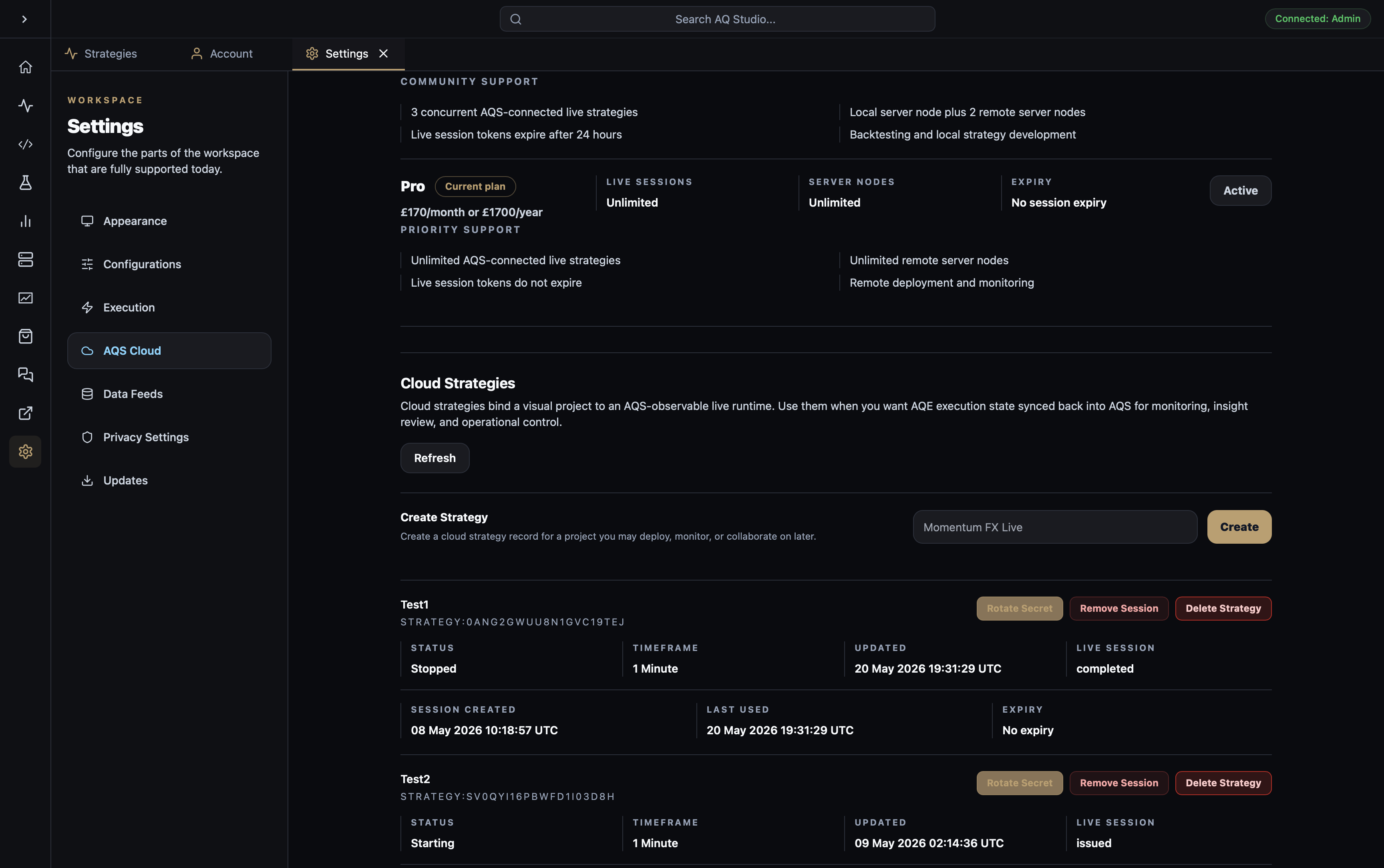
This section is only available for authenticated users. Local-only strategy runs do not require AQS Cloud.
Updates
Section titled “Updates”Use Updates to manually check whether a newer AQ Studio desktop release is available.

- Current version shows the desktop version currently installed.
- Check for Updates asks the AQS website updater endpoint for the latest release metadata.
- When an update is available, AQS shows the target version, release notes, and an install action.
- Installing an update downloads the signed updater package, applies it, and restarts AQ Studio.
AQS also checks for updates automatically on startup. The manual settings screen uses the same updater endpoint as the startup update prompt.
Privacy Settings
Section titled “Privacy Settings”Use Privacy Settings to review account identity, session state, and legal links.
Legal links open on the AQS website. When the application language is French, supported website links open under the French route where available.
We use essential cookies and storage for sign-in, account security, colour theme preferences, this notice, and required PostHog internal usage, session quality, and reliability metrics. We do not use advertising cookies.